This article is part 3 of Sitecore How To: Track Exteral links with DMS series. Before starting with this step you need to be finished with Step 2. Otherwise you don't have any report data.
Show the outgoing links in a report
The easiest way to generate a report is find a report that matches your needs, copy the report and change the datasource and layout. For this POC the Slow Pages report matches 80% of my requirements, so let’s use the Slow Pages report as a base for our new report.
Download the External Links per Page.mrt Report
You can download the External Links per Page report. Unpack the zip file and save .mrt the file in the folder /sitecore/shell/Applications/AnalyticsReports. This report is a customized version of the slow pages report. For more information about report designing you can read the Report Designer Cookbook
Copy the Slow Pages Report SQL Query Item
Duplicate the slow pages Report SQL Query item (/sitecore/system/Settings/Analytics/Reports SQL Queries/Slow Pages) and name the Item External Links per Page. Delete the SQL query in the SQL server field and add the following SQL query.
select top 100 Pages.Url, PageEvents.Data as Link, COUNT(\*) as Clicks from Pages, PageEvents, Visits, PageEventDefinitions where Pages.VisitId = Visits.VisitId AND Pages.PageId = PageEvents.PageId AND PageEventDefinitions.PageEventDefinitionId = PageEvents.PageEventDefinitionId AND PageEventDefinitions.Name = 'External Link' AND Visits.StartDateTime BETWEEN @StartDate AND @EndDate group by Pages.Url, PageEvents.Data order by Clicks desc
This query will return all outgoing clicks from every page.
Copy the Slow Pages Report Item
Open the content editor and duplicate the Slow Pages Report item located at: /sitecore/system/Settings/Analytics/Reports/Reports/Site Health/Slow Pages Name the duplicated report External Links per Page. In the External Links per Page item change the Filename to External Links per Page.mrt and change the Report Title field. In the Queries section. For Failure select the External Links per Page Report SQL Query item.  Note: You might want to rename the datasource name Failure to something like Datasource. If you do this you need to do a search and replace within the .mrt file.
Test you report
Login to the Sitecore Desktop and open the Engagement Analytics. Underneath the Site Health node you will find the External Links per Page report. 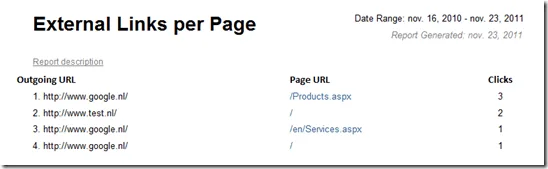 In this report we can see that we generated three clicks from our products page to Google.nl and two clicks from our homepage to test.nl. This report is only a example. You can create all kind of reports all based on the event table in the Analytics Database.